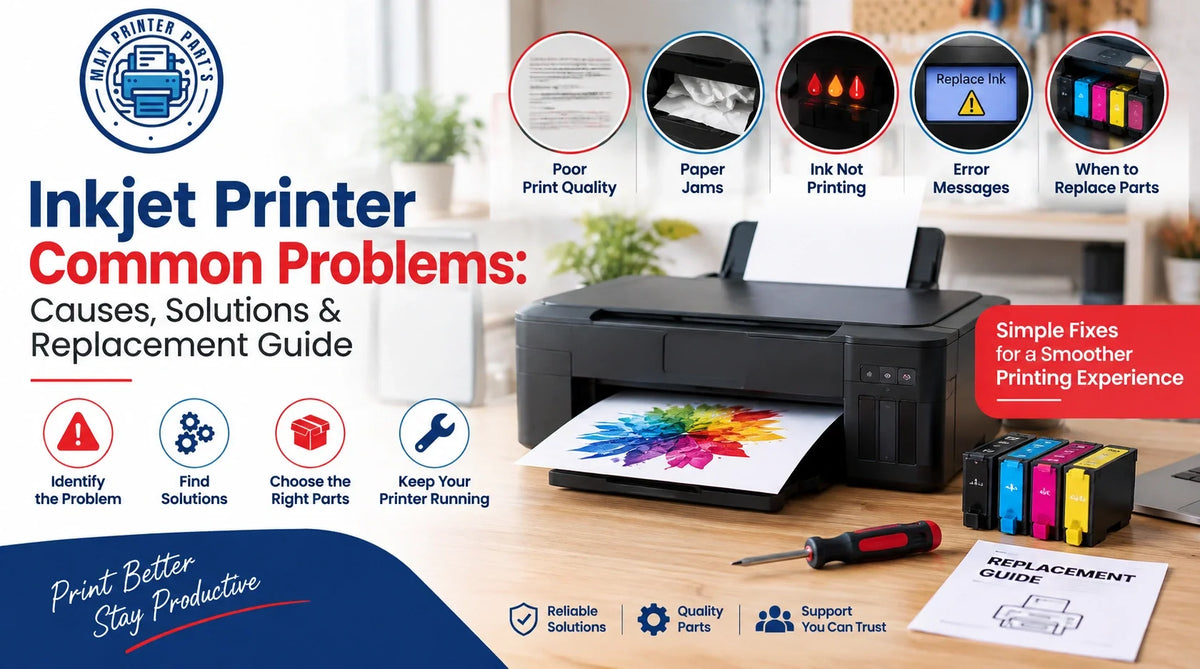
Inkjet Printer Common Problems can be frustrating, especially when the printer suddenly stops producing clean, readable documents. You may see blank pages, faded colours, paper jams, streaks, or even ink leaks. The good thing is that many of these issues can be identified and fixed without replacing the entire printer. This inkjet printer troubleshooting guide explains the most common issues, what causes them, and when you may need inkjet printer spare parts or other replacement components.
Common Inkjet Printer Problems and Solutions
Inkjet printers rely on several small components to produce a clean print. The printhead controls ink placement, rollers move the paper, and the ink delivery system keeps ink flowing properly. When one of these components develops a problem, the symptoms can show up in different ways. Let's look at the problems users encounter most often.
Inkjet Printer Not Printing
One of the most common complaints is simple: the printer receives the print command but doesn't produce the expected output.
This can happen because of low ink, clogged nozzles, incorrect printer settings, connectivity issues, or a problem with the printhead. Start with the simple checks first. Make sure the correct printer is selected, check the ink levels, and print a test page.
If the printer makes normal operating sounds but the paper comes out blank, the issue may be related to the ink delivery system or printhead rather than the computer connection.
Inkjet Printer Printing Blank Pages
A blank page can be surprisingly confusing. The paper feeds normally, the printer sounds like it's working, but there is little or no ink on the page. Common causes include dried ink, blocked printhead nozzles, incorrectly installed cartridges, low ink levels, or problems with ink flow.
Run a nozzle check from the printer's maintenance menu. If the test pattern has missing sections, cleaning the printhead may help. If cleaning doesn't improve the result, the printhead may need further inspection or replacement.
Inkjet Printer Printhead Problems
Among all inkjet printer printhead problems, clogged nozzles are probably one of the most common. Ink can dry inside tiny openings when a printer isn't used regularly, and even frequent use doesn't completely prevent buildup.
A problematic printhead may cause:
-
Horizontal or vertical lines
-
Missing portions of text
-
Uneven colour output
-
Faded images
-
White gaps across printed pages
-
Completely blank prints
How to Fix a Clogged Printhead
Start with the printer's automatic printhead cleaning function. After cleaning, print a nozzle-check pattern and compare the result.
If there is some improvement, another cleaning cycle may help. Don't keep repeating the process unnecessarily, though. It uses ink and won't repair a physically damaged printhead.
When cleaning fails repeatedly, replacing the printhead may be the better option. Max Printer Parts offers different inkjet printer components for supported models, but checking the exact model and part number before ordering is important.
Inkjet Printer Printing Faded or Streaky
Sometimes the printer works, but the result looks noticeably worse than it used to. Text may appear lighter, photographs can have visible lines, and colours may look uneven. Low ink is an obvious possibility, but it isn't always the answer. A partially clogged printhead, poor ink flow, incorrect print settings, or a worn component can also affect print quality.
What Should You Check First?
Start with the ink levels and print quality settings. Then run a nozzle check. If the nozzle pattern shows gaps, clean the printhead and test again. If the problem remains after proper cleaning and the ink supply is fine, the printhead or another ink-delivery component may require replacement.
Inkjet Printer Not Feeding Paper
Paper feeding problems are another everyday issue. You place paper in the tray, start printing, and the printer either doesn't pick it up or pulls several sheets together. The pickup roller is often involved. With regular use, the roller can collect dust and paper residue. Its surface can also become smooth or worn, reducing its grip.
How to Fix Paper Feeding Problems
Remove the paper and check that the sheets aren't damp, bent, or stuck together. Make sure the paper guides are positioned correctly and clean visible dust around the feeding area. If the printer still struggles to pick up paper, inspect the pickup roller. A worn roller may need to be replaced with the correct printer replacement parts for that model.
Inkjet Printer Paper Jams
A paper jam doesn't necessarily mean there is a large sheet stuck inside the printer. Small torn pieces, incorrectly loaded paper, worn rollers, foreign objects, or problems within the paper path can all cause repeated jams. Turn the printer off before removing stuck paper and pull it out gently. If a small piece tears off and remains inside, it can cause another jam later.
When Does a Paper Jam Become a Part Problem?
If jams continue even after using suitable paper and cleaning the paper path, check the rollers and feeding mechanism. A worn pickup roller or damaged component may be responsible. Replacing the faulty part can be more useful than repeatedly clearing the same jam.
Inkjet Printer Ink Leakage Problems
Ink leakage can create messy prints and may even leave ink around the printer's internal components.
A damaged cartridge is one possible cause, but it isn't the only one. Problems with the ink delivery system, dampers, pumps, seals, or incorrect component installation can also contribute. If changing the cartridge doesn't solve the issue, inspect the relevant ink-delivery components rather than assuming the cartridge is responsible.
Inkjet Printer Making Unusual Noises
A little mechanical noise during printing is normal. A new clicking, grinding, or repeated knocking sound is different. It can point towards a problem with the carriage mechanism, rollers, gears, motor, or another moving component.
What Should You Do?
Stop the printer and check for visible obstructions. Remove any loose paper or foreign objects that you can safely access. If the sound continues, avoid repeatedly running the printer just to see whether it disappears. A damaged moving component can sometimes cause additional problems if the machine keeps operating.
Printer Shows an Error After Part Replacement
Replacing a part doesn't always solve a problem if the component isn't the correct one. Before purchasing inkjet printer spare parts, check the complete printer model and, where available, the original part number. Two components can look almost identical but still have different specifications.
This matters particularly for printheads, power supplies, carriage units, encoder strips, ink pumps, and maintenance components.
Max Printer Parts provides inkjet printer parts for different models, so checking product compatibility before placing an order is still essential.
How to Know When an Inkjet Printer Part Needs Replacement
Cleaning and basic troubleshooting can solve many printer issues, but not everything can be fixed that way.
Replacement may be necessary when a component is physically damaged, heavily worn, repeatedly causing the same fault, or no longer responds to normal maintenance.
For example, a pickup roller with a worn surface won't suddenly regain its grip because you cleaned it. Likewise, a damaged printhead won't necessarily recover after several cleaning cycles. That's when the right replacement component can make more sense.
How to Choose the Right Inkjet Printer Spare Parts
Choosing the correct part is just as important as choosing between original and compatible components.
Check the Exact Printer Model
Always verify the complete printer model before ordering. Don't rely only on a product photograph or a similar-looking component.
Check the Part Number
If the existing component has a part number, compare it with the replacement listing. This can help prevent an expensive compatibility mistake.
Consider Printer Usage
A printer used occasionally at home doesn't face the same workload as one operating throughout the day in an office or print shop. If your printer handles hundreds of pages regularly, durability becomes much more important.
Buy From a Reliable Supplier
Product information, compatibility details, warranty terms, and return policies are all worth checking before you buy. Max Printer Parts offers a range of inkjet printer replacement components, making it important to match the required part with the exact printer model.
When Should You Repair or Replace the Printer?
Not every printer problem means you need a new machine. If the printer is otherwise working well, replacing one worn or faulty component may be considerably cheaper than buying a new printer. This is particularly true for machines where suitable replacement parts are still available.
However, if the printer is very old and several expensive components are failing at once, replacement may be more sensible. It comes down to the printer's age, condition, usage, repair cost, and availability of parts.
FAQs
What are the most common inkjet printer problems?
Common issues include blank pages, clogged printheads, faded prints, paper jams, feeding problems, ink leakage, unusual noises, and inconsistent print quality. Most can be diagnosed through basic maintenance and testing.
Why is my inkjet printer printing blank pages?
Blank pages can be caused by clogged nozzles, low ink, dried ink, incorrectly installed cartridges, or ink-flow problems. Running a nozzle check and cleaning the printhead can help identify the cause.
How do I fix inkjet printer printhead problems?
Run a nozzle check and use the printer's built-in printhead cleaning function. If print quality remains poor after proper cleaning, the printhead may be clogged severely, worn, or damaged and may require replacement.
When should I replace an inkjet printer part?
Consider replacement when a component is visibly damaged, heavily worn, repeatedly causes the same issue, or doesn't improve after appropriate cleaning and troubleshooting. Always verify compatibility first.
How can I choose the right inkjet printer spare parts?
Check your printer's complete model number and the original part number before buying. Compare these details with the supplier's compatibility information to make sure the replacement component is suitable.